

Why Google Says Your Phone Number "Cannot Be Used for Verification"
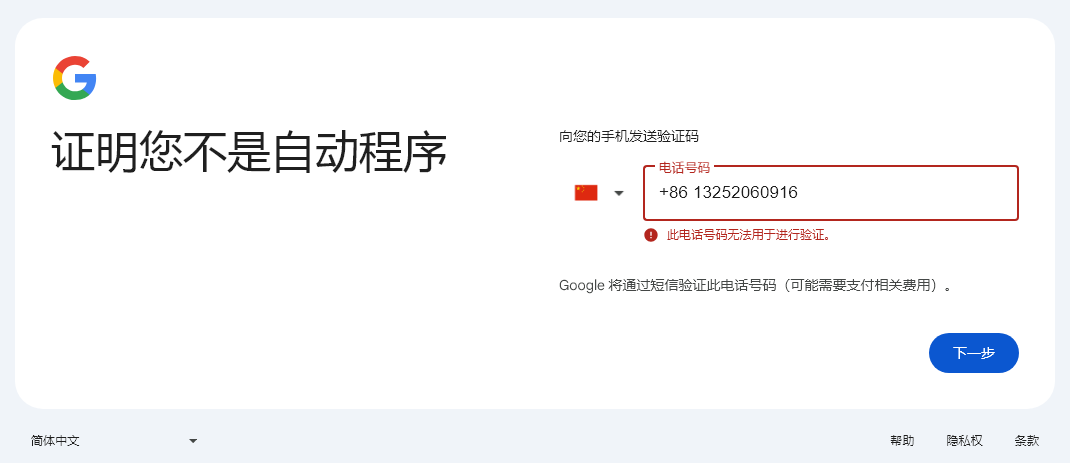
Bottom line first: this message has nothing to do with your phone number. Google's risk engine has given the overall environment behind this signup request a low score. Swapping in another number and retrying only teaches the system to flag that environment as abusive faster. After enough attempts, the account and the IP get locked together, and registering later becomes nearly impossible.
Google scores trust on four dimensions: how clean the IP is, the browser fingerprint (language, timezone, fonts, resolution), behavior (click speed, copy-paste), and whether the number's country matches the IP location. The typical foreign-trade scenario: a shared office proxy, dozens of people behind one exit IP, several accounts created in a day. Even a perfectly good number gets rejected.
In 2026 these checks only get tighter. After Google moved AI Overviews to the Gemini 3 model in January 2026, its spam-account detection model was upgraded in step. So the fix is not "find another working number" — it is to make the signup environment look like a real, ordinary user.
Four Environment Checks to Complete Before You Register
Do these four things in order before you open the signup page. It works far better than blind retries, because each one feeds directly into the risk score.
- Set your browser language to English (United States). In Chrome, open Settings → Languages, drag "English (United States)" to the top, and restart the browser. The signup page language and button text will follow. This is the step people skip most often.
- Set your system timezone to a US timezone. On mobile, set the language to English, the timezone to US Eastern or Pacific, and turn off location services. A mismatch between the number's country, the IP location, and the timezone is one of the most common triggers.
- Run your network in global mode. Do not use split-tunnel PAC rules. If even one request during signup leaves through your local connection, the fingerprint becomes inconsistent. Use a clean native residential IP, not a heavily shared datacenter IP.
- Start from a clean browser profile. Use an incognito window, or better, a fresh browser profile that has never signed into a Google account. Keeping an old Google account in the same browser while creating a new one is effectively telling the system "this is a burner".
Once the environment is ready, do not click Next rapidly. Spend ten-plus seconds on each page, and type information by hand instead of pasting blocks of text. These behavioral details feed the risk score too.
Mobile or Desktop: Which Has a Higher Success Rate?
Practical experience in 2026: mobile beats desktop, because a phone has a real carrier network and fewer extensions interfering. The key is to open the browser on mobile data first (not the office WiFi), set language and timezone as described above, then go through the account creation flow.
Desktop signups suffer from too many browser extensions. Ad blockers, translation tools, and fingerprint spoofers all modify request headers, which makes the environment look more like a bot. If you must use a desktop, disable every extension first.
| Signup method | Success rate | Main risk | Recommendation |
|---|---|---|---|
| Mobile data + English environment | Relatively high | Timezone or location not disabled | First choice; stop after one failure |
| Desktop + global residential IP | Medium | Extensions alter headers, shared exit IP | Incognito window + extensions disabled |
| Desktop + shared datacenter proxy | Low | IP already used for many signups | Not recommended; easy to burn the account |
| Repeated retries in the same environment | Very low | Triggers a lockout | Change environment after two failures; don't force it |
The "success rate" column reflects industry experience, not figures published by Google. There is only one real rule: the more consistent the environment, the higher the pass rate.
If Phone Verification Fails, What Else Can You Do?
If the steps above still don't get you through, stop stacking up numbers. Try these in order:
- Change the verification method. Some accounts show a "try another way" option — use a backup email to receive the code, or switch to a voice call instead of SMS.
- Change the device, not the number. Put the same number into another phone that has never registered a Google account. Risk scoring looks at the device, not just the number.
- Change the network's country. Registering through a residential IP in your target customer's country passes more easily than an Asian exit IP. If you sell into Europe or the US, a US or German exit looks more natural.
- Cool down for 24 hours. If you have already failed several times today, stop for a day and try again with a brand-new environment. Your odds are better than hammering away.
One case is worth separating out: the account was created successfully, but login asks for phone verification. That is not the same as a rejected signup. It usually means a login from an unfamiliar location — signing in again from your usual device and network normally clears it.
At company level, the safer approach is to stop having everyone register a personal Gmail. Use a domain email (name@yourdomain.com) as the primary address and keep the Google account as a tool account only. That avoids signup risk scoring and shows customers your domain instead of gmail.com. For deliverability from a domain mailbox, see how to use Google Postmaster Tools to improve email deliverability.
What to Do After an Account Is Locked Out
A hard lockout looks like this: the signup page spins forever, you get "this browser or app may not be secure", or submitting bounces you straight back to the login page — with every number and every device. Environment tweaks won't fix this, because what is locked is the device-plus-IP combination.
The order of recovery: retire the current IP for at least a week and switch to a clean line; use a brand-new device or a factory-reset phone; then run the full English-environment signup flow again. Whatever you do, don't keep submitting while locked out — it only extends the ban.
If your team hits this repeatedly, fix the account system at the root. A foreign-trade site's own forms, business email, and CRM don't depend on personal Gmail, and a solid technical foundation saves a lot of hassle. For a diagnostic framework, see why your foreign-trade website has no traffic or inquiries and fill in the basics first.
Three Rules for Day-to-Day Account Use
Signup is only step one. How you use the account decides how long it survives. Google puts new accounts through an observation period, and behavior during that window carries a lot of weight.
- One account, one device, one network. Sign in to the same account from a fixed device and network. Don't log in at the office today, at home tomorrow, and at a customer's place the day after.
- Warm it up for a week. For the first few days, send and receive normal email, watch YouTube, run searches. Don't blast cold emails straight away. Mass sending from a fresh account is the single biggest cause of bans.
- Add a recovery email and two-step verification. Both raise account trust and are the only way back in if you lose access.
For teams running cold email, the content itself affects account safety. Bulk templates, short links, and attachment names all feed spam scoring, so watch how you write. See tips and cautions for writing articles and product descriptions with ChatGPT to make copy read more naturally and less templated.
Accounts and websites go together. If your site still runs on a page builder that drags down load times, half your mobile visitors leave after 3 seconds (Google data) — and inquiries drop with them. If it's time to migrate, see how to migrate a WordPress site to another hosting provider (e.g., Hostinger). To judge whether your site is stuck on the basics, compare it against the structure standards in B2B foreign-trade websites.
FAQ
Why does my own real phone number get rejected for Gmail verification?
Because Google is not judging whether the number is real — it is judging the environment behind the request. An IP used for many signups, browser language and timezone that don't match the IP's country, or several signups from one device in a short window will get a genuine number rejected too. Changing the environment works better than changing the number.
After how many failures should I stop?
Stop after two failures in the same environment. Continuing tells the system to mark the device-plus-IP pair as abusive, which can affect even normal logins later. Wait 24 hours, then try again in a completely new environment.
Can I use someone else's phone number to receive the code?
It occasionally works, but the risk is high. When the number's owner and your login location never match, the account will still be asked for secondary verification later — you have only postponed the problem. For business use, go straight to a domain mailbox and stop depending on a personal phone number.
Will I get banned if I send cold emails right after signing up?
Very likely. New accounts are under observation, and sending a large volume of mail to strangers in a short time is the most typical ban trigger. Use the account normally for a week, then start with a small, tightly targeted list — and set up SPF, DKIM, and DMARC first.