

The short answer: something — a plugin, a theme, or a PHP file — is sending output before WordPress sends its HTTP headers. That output could be a space, a BOM, or one line of warning text. To fix it, work through four steps in order: turn on WP_DEBUG to find the file, deactivate all plugins, switch to a default theme, and clean the whitespace out of your PHP files. Most sites are back in the dashboard within 30 minutes.
What Causes the Cookies Blocked Error? Use This Table to Narrow It Down
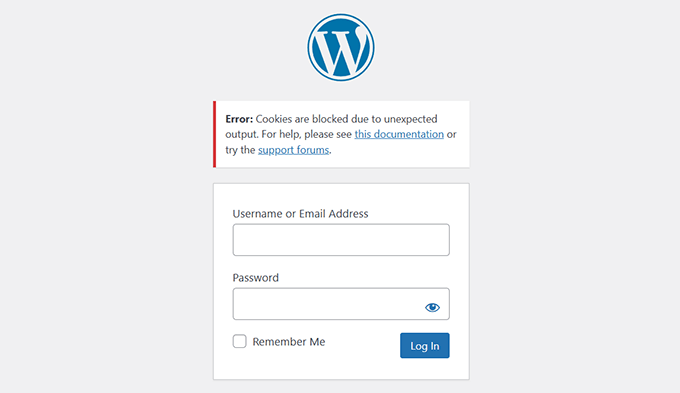
The first thing WordPress does at login is call setcookie() to write the login credentials, and that call must happen before anything is sent to the browser. If even one space, one BOM, or one line of PHP warning goes out first, PHP throws headers already sent, the cookie never reaches the browser, and you can't get into the dashboard. You're hunting for whatever is sending output, not for the cookie itself.
Among the export sites we handled in 2026, the triggers clustered in four places: a freshly updated plugin, an edited functions.php, a re-saved wp-config.php, and warnings left unhandled on PHP 8.2 / 8.3. Matching the symptom first narrows the range far faster than opening hundreds of files.
| What you see | Most likely source | Do this first |
|---|---|---|
| Appears right after installing or updating a plugin | Plugin conflict | Deactivate all plugins, then re-enable one by one |
| Appears after a theme change or edits to functions.php | Theme output | Switch to a default theme to test |
| Appears after a site migration or edits to wp-config.php | Whitespace or BOM in the file | Open the file in an editor and check the top and bottom |
| Homepage loads fine, only some pages error | Page template or shortcode output | Turn on WP_DEBUG and read the file path in the warning |
| Whole site white screen plus this error | PHP version or memory limit | Check the host error log, contact your host |
Step 1: Turn On WP_DEBUG and Let It Name the File
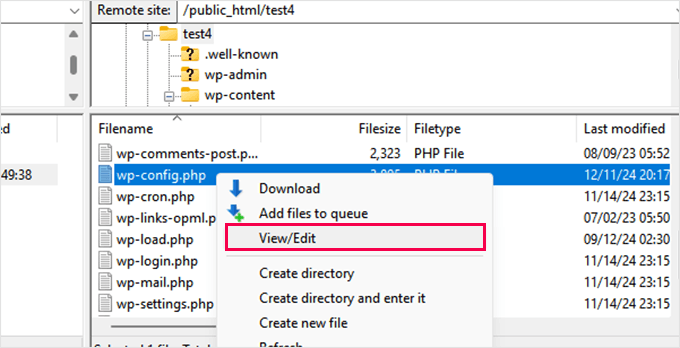
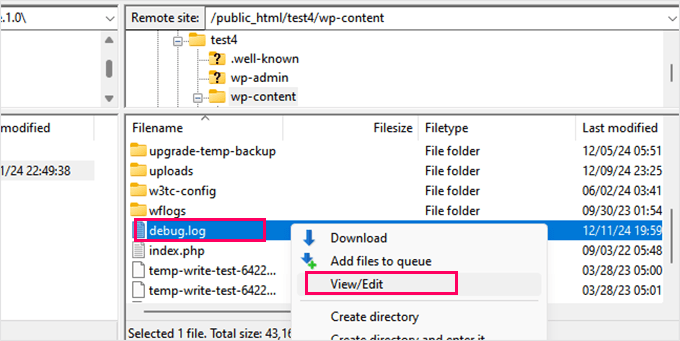
Don't guess. Open wp-config.php in the root directory with your host's file manager or FTP, and add three lines just before /* That's all, stop editing */: define('WP_DEBUG', true);, define('WP_DEBUG_LOG', true);, and define('WP_DEBUG_DISPLAY', false);. Then reload the login page. The error gets written to wp-content/debug.log.
Open the log and find the path and line number after headers already sent in — for example /wp-content/plugins/xxx/xxx.php on line 12. That path is your source. Fix it there instead of searching the whole site. The logic is the same as with jQuery is not defined and other front-end errors: get the exact error first, then act.
Always set WP_DEBUG_DISPLAY to false. Printing PHP paths and line numbers to visitors exposes your server structure — and a buyer comparing suppliers will just close the tab. Set WP_DEBUG back to false as soon as you're done. Core has handled undefined variables more strictly since WordPress 6.7, so upgrading to the latest version is a good moment to recheck plugin compatibility and skip a lot of headaches.
Step 2: Deactivate All Plugins to Confirm the Output Comes From One
Plugins are the most common trigger: an extra blank line after an update, or a leftover debugging snippet, is enough to send output early. Bulk deactivation deletes nothing — plugin settings live in the database, so the configuration is still there when you re-enable.
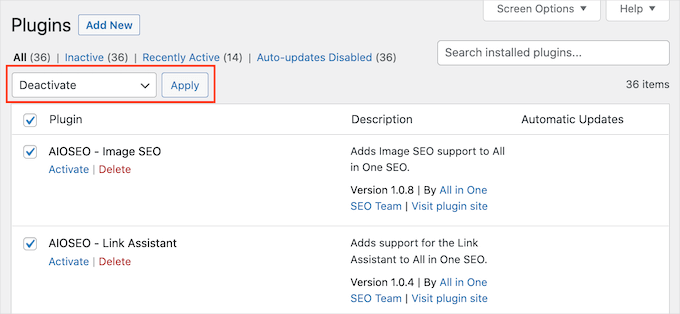
- If you can reach the dashboard: go to Plugins → Installed Plugins, select all, choose Deactivate from Bulk actions, and apply.
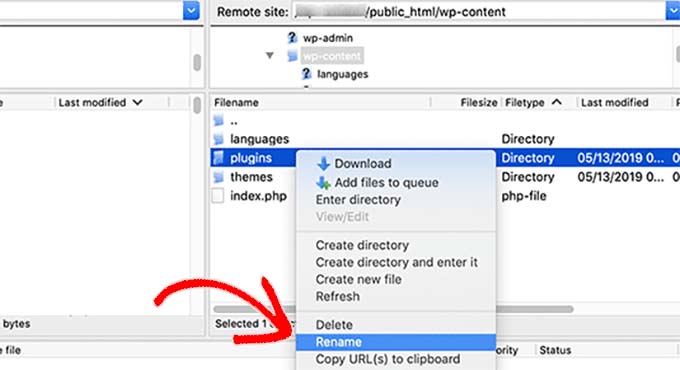
- If you can't: open wp-content with FTP or the file manager and rename the plugins folder to plugins-off.
- WordPress can't find that folder, so it loads no plugins at all — the same as deactivating every one.
- Reload the login page. If the error is gone, a plugin is the cause. If it's still there, go to step 3.
- Re-enable plugins one at a time, reloading the login page after each. The one that brings the error back is your source.
While plugins are off, the front end may lose styling and forms may stop working. On an export site, do this during your European or US customers' night, not during their business hours. Once you've pinned down a plugin, check for a new version first. If there isn't one, swap in an alternative or send the debug.log error to the plugin developer.
Step 3: Switch to a Default Theme to Rule Out Theme Functions
If someone left a blank line after the closing tag in a theme's functions.php, or a debugging echo or var_dump is still sitting in there, that also sends output before the cookie. Testing is simple: switch to the official default theme.
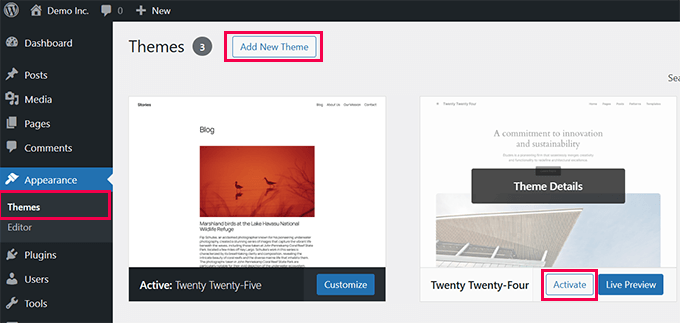
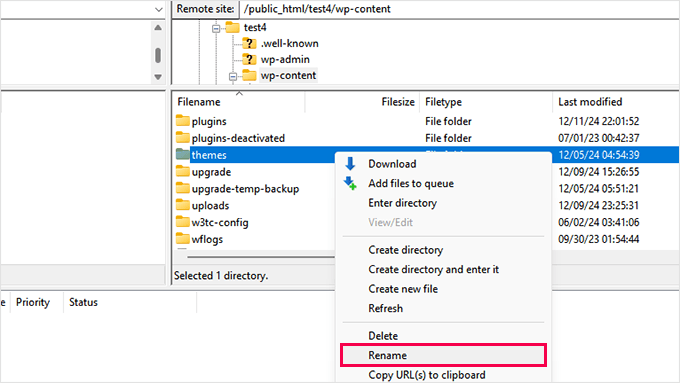
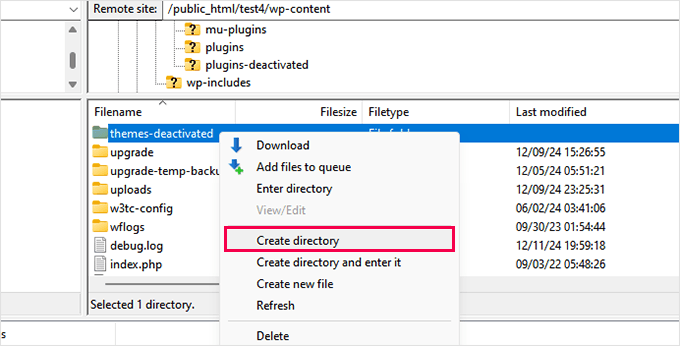
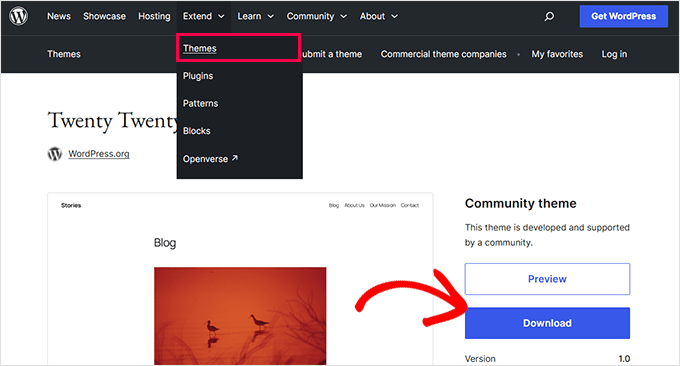
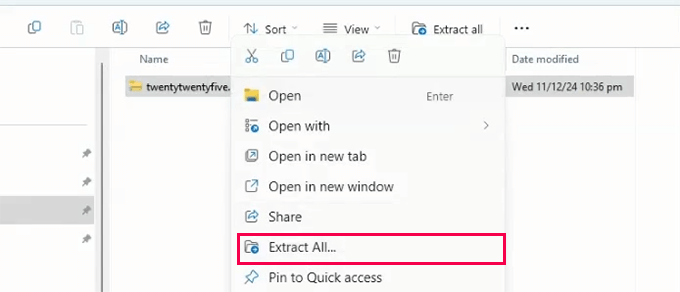
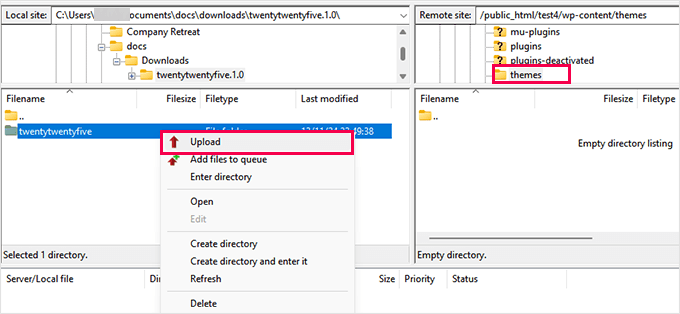
If you can reach the dashboard, go to Appearance → Themes and activate Twenty Twenty-Five (the default theme released in 2025, and still the easiest baseline for troubleshooting in 2026). If it isn't installed, click Add New Theme, search, and install it. If you can't reach the dashboard, rename the themes folder inside wp-content to themes-off with FTP, create an empty folder called themes, then download the default theme zip from wordpress.org, unzip it, and upload it.
The front end will look broken after the switch — that's expected, you're only using it to test. If the error disappears, the problem is in your original theme. Before switching back, check its functions.php and any template files you edited recently.
Step 4: Check PHP Files for Stray Whitespace, BOMs, and Extra Closing Tags
If plugins and themes are both ruled out, the problem is in the files themselves. Open wp-config.php and functions.php in VS Code or Notepad++ and turn on Show All Characters. Check three things: is there a blank line or space before ; is there a BOM at the start of the file (it shows as the garbled characters ); and is there a line break after ?>.
The BOM is the trap Chinese users hit most often: when you save wp-config.php with Notepad, it adds a BOM by default, the browser treats it as content, and the cookie fails immediately. Choose UTF-8 without BOM when saving. Also, in files that are pure PHP, just delete the closing ?> — the official WordPress coding standards recommend the same: no closing tag means no stray output after it.
Don't inspect hundreds of plugin files. debug.log already gave you the path — fix only that one spot. Upload the corrected file, clear browser cookies and site cache, then verify the login in an incognito window.
After the Fix: Spend 20 Minutes on a Site Checkup So It Doesn't Happen Again
Getting back in is only step one. This kind of failure usually exposes maintenance habits: editing code on the live site, plugins left unupdated, no backups. Spend 20 minutes on the items below and you'll save hours next time.
- Update WordPress core, themes, and plugins to current versions. Back up the database and wp-content first.
- Confirm HTTPS works across the whole site. Without SSL, Chrome labels the site Not secure, and overseas customers close the tab.
- Run PageSpeed Insights and check Core Web Vitals: LCP ≤ 2.5s, INP ≤ 200ms, CLS ≤ 0.1 for a Good rating. On mobile, about 53% of users leave if a page takes more than 3 seconds to load (Google data). After changes, wait out the full 28-day real-user rolling window before Search Console reflects it.
- From now on, make code changes in a staging environment — don't edit theme files directly on the production site.
- If you're planning to move to a more stable host, migrating your WordPress site to a new hosting provider is a good moment to sort out PHP versions and a backup policy at the same time.
When a site is down every few days, inquiries are the first thing you lose. It's one reason so many independent export sites get no traffic or inquiries — visitors land on a white screen while the ad budget keeps burning. If your site targets overseas buyers, set up caching, SSL, and backups at the architecture stage of your B2B export website.
Frequently Asked Questions
Will I lose data if I deactivate plugins?
No. Plugin settings and content live in the database, so the configuration is intact when you re-enable it. But forms, live chat, and payment features stop working while plugins are off, so pick a low-traffic window and restore them right after.
The dashboard is completely inaccessible — can I still fix it?
Yes. Use your control panel's file manager or FTP to go into wp-content and rename the plugins folder to plugins-off — the same as deactivating all plugins. Rename themes and create an empty themes folder to disable the theme. Neither step requires a dashboard login.
I fixed the files but the error is still there. Now what?
Clear browser cookies and site cache first, then try an incognito window. Your browser, CDN, and caching plugins may still hold the old error response. If you use Cloudflare or a page caching plugin, purge the full cache once.
Can my host fix it?
It depends. If the error comes from files on your site, the host can't touch it. If debug.log shows no clear path, or the whole site white-screens and even the log won't write, send the host the exact error text and the time it appeared, and ask them to check the PHP version, memory limit, and server error log. That's faster than guessing.