

When the latest WhatsApp for Windows won't show a QR code, nine times out of ten it isn't your account — it's your PC environment. Microsoft Store won't install or keeps spinning, so the package never finishes downloading. Or TLS 1.2/1.3 isn't enabled, or your proxy conflicts with the Store. Fix the install source first, then fix scanning. Follow the order below and most machines are back online within ten minutes.
Why must the latest WhatsApp come from Microsoft Store?
WhatsApp no longer offers a Windows installer on its official site. Click download and you're sent straight to Microsoft Store. The upside: you always run the newest version. The cost: whether you can install at all is now the Store's problem — and on plenty of PCs the Store is already broken.
Two kinds of machines fail most often. The first runs Ghost or stripped-down Windows builds where the Microsoft Store component was cut, so clicking the download button does nothing at all. The second can open the Store, but the interface spins forever and never reaches the WhatsApp page. That second case has little to do with VPN tools or DNS — the TLS protocols in Internet Options are simply switched off.
Telling these two apart matters: one is missing software, the other is a missing setting, and the fix order is completely different.
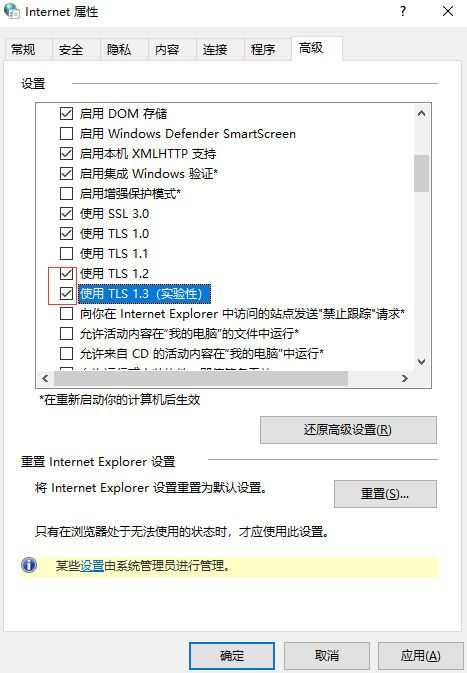
Store won't open or keeps spinning? Fix it in four steps
First confirm the Store is there. Search “Microsoft Store” in the Start menu. If nothing comes up, the component was stripped from your system, so reinstall the Store before going further.
- Press Win + R, type inetcpl.cpl and hit Enter to open Internet Options.
- Switch to the Advanced tab and tick TLS 1.2 and TLS 1.3 in the list.
- Click Apply, then OK. Close the Store window completely and reopen it.
- Search WhatsApp in the Store, click Install, and wait for the download to finish before launching.
You don't need your VPN running for any of this. Turn the line on later, at login. In hands-on testing this step resolves about 99% of cases — most “spinning” stops at the missing TLS ticks.
Installed but still no QR code? Work through this table
The install went through, but the app opens to a blank screen, or the QR area keeps spinning. The cause usually sits in your network or on your phone.
| Symptom | Most likely cause | What to do |
|---|---|---|
| Download button on the official site does nothing | Stripped system with no Microsoft Store | Reinstall the Store component, then search for and install WhatsApp |
| Store opens and keeps spinning | TLS 1.2/1.3 not ticked in Internet Options | Tick them under Advanced and restart the Store |
| App opens with no QR code, blank screen | Proxy routing rules are blocking WhatsApp domains | Switch nodes, or set the WhatsApp process to global/direct |
| QR code appears but the phone won't scan it | WhatsApp on the phone is too old | Update it from the phone's app store and scan again |
| Message says “No valid QR code found” | Old phone version, or the QR code has expired | Update the phone, refresh the code on desktop, scan again |
Run through them in order and you'll usually pin it down. The proxy row is the most common in trading companies: reps leave the company line on all day, WhatsApp's login domains get routed to direct connection, and the QR code never shows.
- Check the proxy: turn it off, reopen WhatsApp, and see whether the QR code appears.
- Check version sources: desktop from Microsoft Store, phone from App Store or Google Play. No third-party installers.
- Check account status: if you're seeing a login restriction rather than a missing QR code, follow the code and appeal process in WhatsApp verification codes not arriving and login failures.
If all three pass and it still fails, scan and log in once on another computer, then log back in on the original one. That rules out a problem with the local machine.
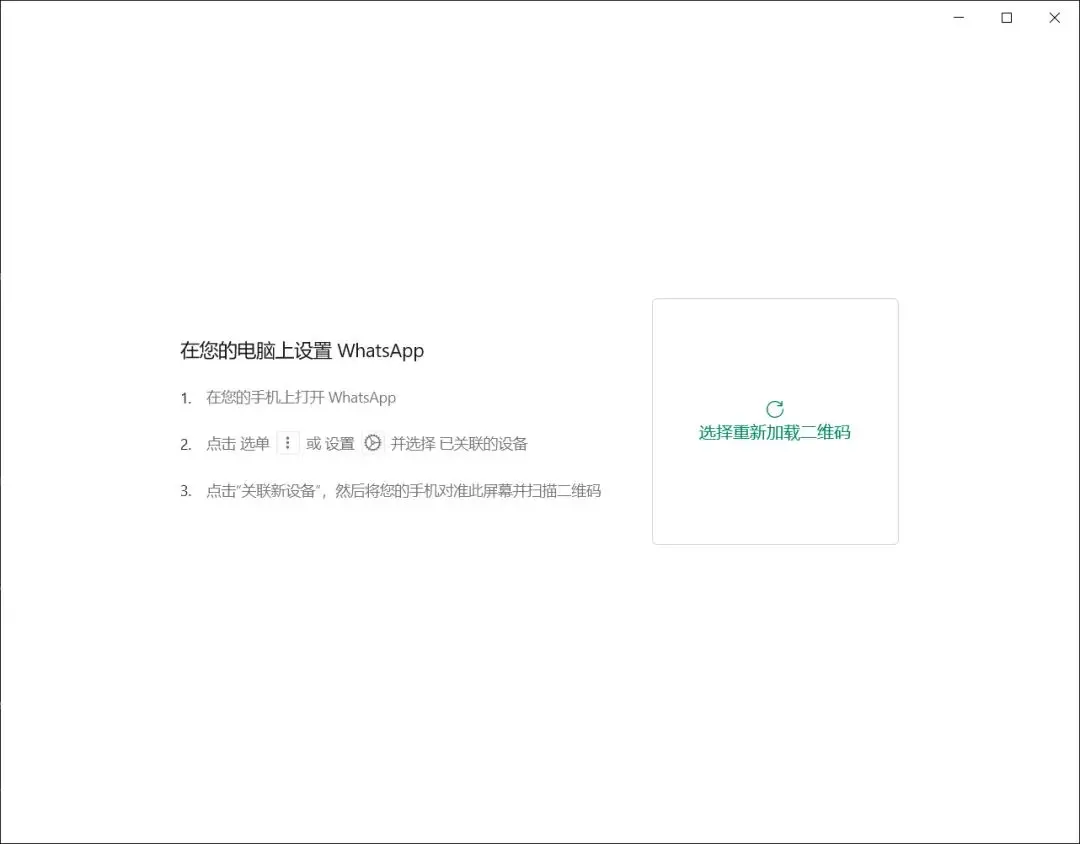
Phone says “No valid QR code found” — where's the error?
That message comes from the phone, not the desktop. When the phone's WhatsApp is too old, it can't parse the login link inside the code and throws this error.
The fix is simple: update WhatsApp on your phone to the latest version, refresh the QR code on the desktop, and scan again. QR codes expire too, so one left sitting for long will be rejected as invalid.
If the desktop shows “For your security, we're unable to log you in right now,” that's login risk control, not a QR code fault. Follow the steps in How to get past WhatsApp security prompts and log in.
How do sales teams keep this from happening?
When a rep's WhatsApp drops offline, customer messages sit unread. Rather than digging through tutorials after it breaks, lock the environment down.
- Standardize the system image: keep Microsoft Store in the company-wide install image. No stripped builds with the Store cut out.
- Standardize the update rhythm: follow WhatsApp version vulnerabilities and update alerts and upgrade when security patches land.
- Standardize login devices: bind the main account to one regular computer to cut risk-control triggers from device switching.
- Standardize the entry point: the WhatsApp button on your site must open the form properly. A dead button loses inquiries outright — see WhatsApp contact form missing its submit button.
- Reduce manual coverage: if you need overnight auto-replies, see how to build an AI WhatsApp chatbot.
The first message a customer sends from your site often decides whether the deal moves forward. Stable WhatsApp beats another tool in the stack.
FAQ
WhatsApp doesn't show up in Microsoft Store search. What now?
Check whether the system region is set to your target market, then confirm the Store isn't disabled by Group Policy. If neither works, reinstall the Store component, or complete the first login on a computer where the Store works.
Can I install WhatsApp without a proxy?
Yes. Neither the install nor the TLS settings need a proxy. You only need a stable line to log in and send messages.
The QR code appears, but my phone spins after scanning. What do I do?
It's usually a network issue on the phone. Switch between Wi-Fi and mobile data and retry. Also confirm WhatsApp on the phone is up to date.
Will reinstalling WhatsApp lose my chat history?
Uninstalling the desktop app doesn't affect records on your phone. After you scan and log in again, history syncs over — as long as the phone's app data hasn't been cleared.