

Here's the short version: most WordPress downtime isn't caused by attacks. It's 403, 404, 500 and 503 permission and config errors that nobody notices fast enough. An AI monitoring and repair tool watches your whole site around the clock, alerts you the moment something breaks, fixes what it can on the spot, and tells you the root cause when it can't. For a 2026 export site, that protects inquiries better than ten more blog posts.
What a WordPress AI monitoring and repair tool actually solves
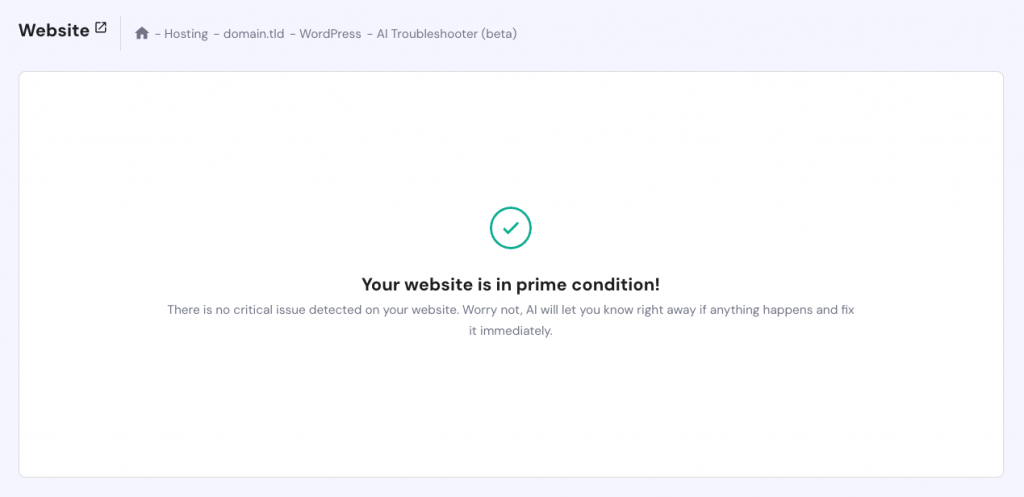
Standard uptime monitors only know the site is down. They don't know why. On a real export site, the story usually looks like this: a plugin auto-update conflicts and the whole site returns 500. One bad .htaccess rule turns every product page into a 403. Server resources max out and your ad landing page goes 503 with a blank screen.
A WordPress AI monitoring and repair tool works at the whole-site level. It only catches critical errors that affect the entire website, not minor glitches on a single page, because only site-wide failures wipe out inquiries. When it finds an error, it alerts you first, then gives you an actionable path forward. In most cases, it can apply the fix directly.
It is still in beta. Auto-repair covers common root causes. When one error has several possible causes, the AI may need multiple attempts. Rare code-level issues may return a root cause with no fix. Know that boundary up front, and you won't treat it as a universal safety net.
How it detects errors and repairs them: the four-step flow
- Detect: the tool continuously scans WordPress sites hosted on your server and catches 403, 404, 500, 503 and site-wide anomalies such as "There has been a critical error on your website."
- Notify: you're told immediately, with a link into the solution.
- Analyze: inside the WordPress AI searcher, the tool reviews server and site details, error logs and files to pinpoint the root cause within a very short time.
- Fix and verify: the fix is applied. If the site comes back online, the tool returns a "your website is working normally" confirmation.
The real difference here isn't the technology. It's time. In the past, the customer found the outage first, emailed to ask whether your site was down, and you then chased a developer. Hours or a whole weekend could pass. Now it's minutes from alert to recovery.
One reminder: when the AI can't offer an auto-fix, the root-cause finding still has value. It saves your developer two hours of guessing instead of starting with "let's disable plugins one by one."
Which errors get handled automatically? A comparison of 4 common types
The WordPress AI searcher mainly identifies the error types below. Their impact on an export site varies a lot, so it's worth checking your own site against each one.
| Error code | Typical trigger | Impact on inquiries | How the AI handles it |
|---|---|---|---|
| 403 Forbidden | Access permission settings, IP restrictions, .htaccess rules, server configuration | Buyers can't open product pages and leave for a competitor | Locates the rule conflict and offers an applicable fix |
| 404 Not Found | Broken links, incorrect permalink rules, DNS misconfiguration | Old backlinks and ad traffic are wasted | Flags it as a site-wide issue and provides a solution |
| 500 Internal Server Error | WordPress core, plugin or theme configuration errors | Site is down and every inquiry form fails | Reads error logs and files; most cases can be auto-fixed |
| 503 Service Unavailable | Server temporarily can't handle requests, resources maxed out | Ad landing pages go blank while spend continues | Pins down the root cause and retries the fix if needed |
There's also the message with no error code: "There has been a critical error on your website." It usually means a PHP fatal error and a fully blank page, which hurts inquiries as much as a 500. When it happens, check the error log first, then look at the plugins and themes you changed most recently.
Front-end script errors fall outside this auto-repair scope, such as "jQuery is not defined" in the console with drop-down menus and form validation all failing at once. Those follow a predictable troubleshooting path. See how to fix the "jQuery is not defined" error in WordPress and rule out the theme, plugins and script-combining settings in order.
The site is back online, so why are inquiries still missing?
A fixed error only means the site opens. It doesn't mean people stay. Google's data shows that on mobile, about 53% of users leave when loading takes more than 3 seconds. The Core Web Vitals "good" thresholds are LCP ≤ 2.5s, INP ≤ 200ms and CLS ≤ 0.1, measured on a rolling 28-day window of real user data, so you wait 4 weeks before the change shows up in Search Console.
Break it into three things you can do right now. The hero image must use an img tag with fetchpriority="high", not a CSS background, because the browser has to parse the CSS before it even finds the image and LCP slips. Set explicit width and height on every image and CLS is basically under control. Delay third-party scripts such as GA4, Meta Pixel, TikTok Pixel, live chat and pop-ups until the user's first interaction (touchstart, mousemove, keydown, scroll) and INP usually drops noticeably.
Page builders differ widely in INP cost. From worst to best, roughly: Elementor, Divi, WPBakery, Beaver Builder, Bricks, GenerateBlocks, Kadence Blocks, native Gutenberg. If your site already carries dozens of heavy pages, patching repeatedly may be worse than migrating your WordPress site to a better hosting provider and switching to a lightweight builder. Some sites don't have a technical problem at all but a positioning and content-structure problem, so work through why your B2B export site gets no traffic or inquiries point by point.
Pre-launch checklist: 5 settings that reduce errors
- Valid SSL certificate: Chrome marks sites without SSL as "Not secure," and buyers leave on sight.
- Readable error logs: confirm your hosting panel gives you the PHP error log, otherwise you can't investigate the errors the AI reports.
- Explain two things in the first screen within 3 seconds: who you are and what problem you solve. Don't make buyers read a full company profile to figure out what you sell.
- Spec tables and MOQ on product pages: this is the first gate B2B buyers use to judge whether you're worth working with.
- Only three form fields: name, email, requirement. More fields mean more abandonment.
Forms are the most overlooked part. Three fields convert best; adding "company size" adds another layer of drop-off. You also need to block bot submissions, or dozens of spam inquiries a day will exhaust both your sales team's patience and their inbox. For the how-to, see the ultimate guide to handling spam inquiries and comments in WordPress.
If you want monitoring, speed and security built into your site from the start, look at the overall setup approach behind AI-integrated marketing websites first, then decide whether to add plugins or rebuild. After all, acquiring a new customer costs about 5 times more than keeping an existing one, and a returning customer who can't open your site is the worst deal of all.
FAQ
Can a WordPress AI monitoring and repair tool fix every website error?
No. It mainly covers critical errors that affect the whole site, and it is still in beta. Rare code-level issues may return only a root cause with no automatic fix, and when one error has several causes the AI may need multiple attempts. Front-end script errors generally still need manual work.
Does a few minutes of downtime really affect inquiries?
Yes. About 53% of mobile users leave when loading takes more than 3 seconds, and a 500 error doesn't even give them the chance to load. B2B buyers typically compare 3 to 5 suppliers at once. If your site won't open, they move to the next one.
I already have a monitoring tool. Do I still need AI repair?
Monitoring tells you the site is down. AI repair tells you why and whether it can fix itself. The difference is recovery time dropping from hours to minutes, and downtime translates directly into lost inquiries.
Can auto-repair break my site?
It applies a fix targeted at the identified root cause and then verifies the site is back online. Even so, keep recent backups, especially right after a plugin or theme upgrade.